
Based on upstream documentation. These steps have not been independently tested in the desktop app; menu labels and behavior may differ by release.
Step by step
Download a starting canvas
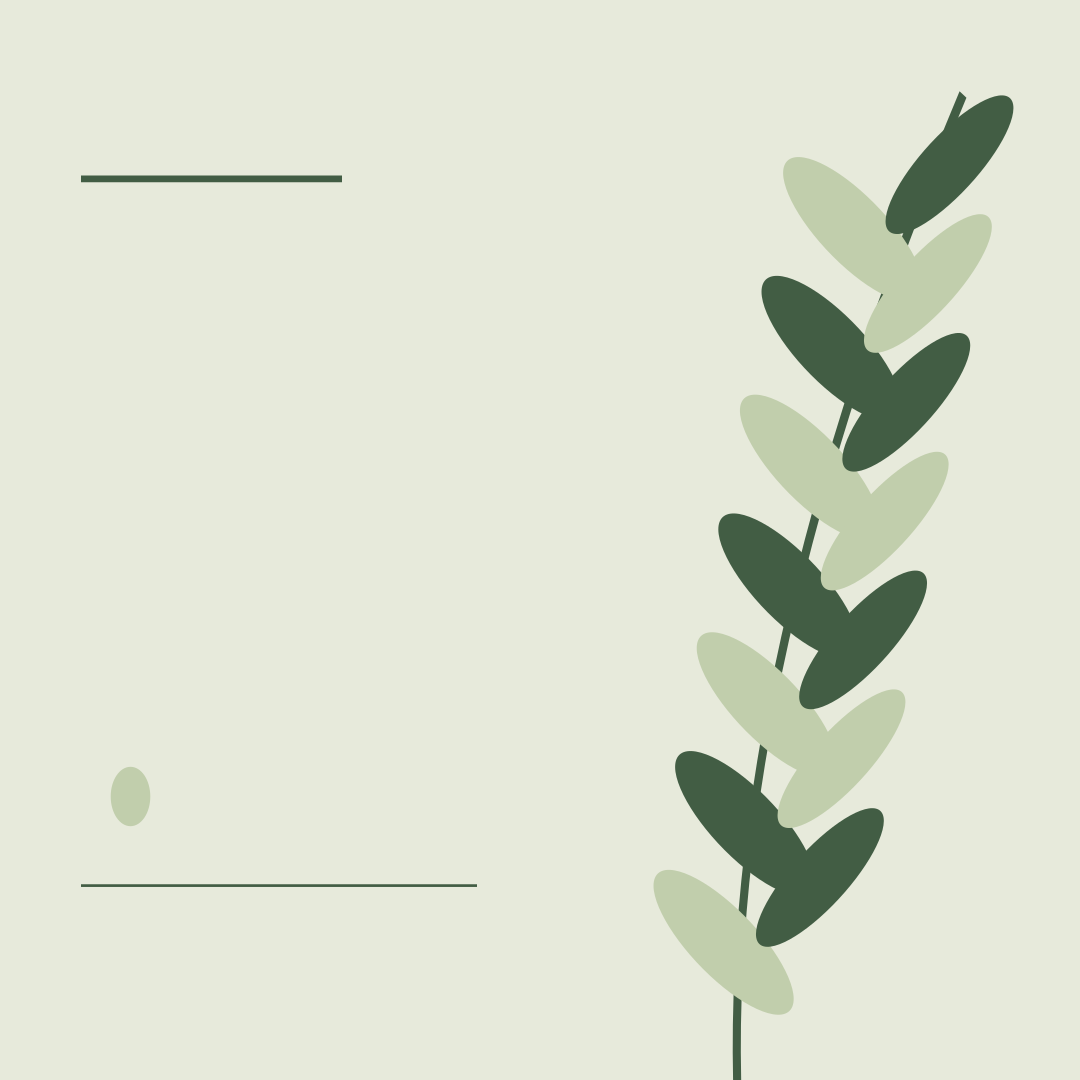
Choose the Botanical social canvas below. It is an original SVG with a fixed 1080 × 1080 viewBox and no external images or fonts. Keep the downloaded original unchanged.
Open a copy
Use File → Open and choose the SVG. Upstream documents SVG import as shape layers, but this individual file has not been app-tested. If it fails, use our browser image tool to render the SVG to PNG, then open that PNG as a flat background.
Add your own type
Select the Type tool and place a short headline in the open space. Use a locally available font. Choose a readable color and leave breathing room around the edges.
Save an editable copy
Use Save As with a new filename and a layered format offered by your installed release. Close and reopen the saved copy to check that the text is editable. Do not overwrite the downloaded SVG.
Export the finished image
Use Export As to create a PNG for sharing. Open the exported file outside the editor and check the headline, dimensions, and colors before publishing.
Files for this workflow
Sources and further reading
PhotoCraft is in early alpha. Keep original files and test a copy before relying on it for important work.
Suggest a correction →