
Based on upstream documentation. These steps have not been independently tested in the desktop app; menu labels and behavior may differ by release.
Step by step
Use a simple practice image
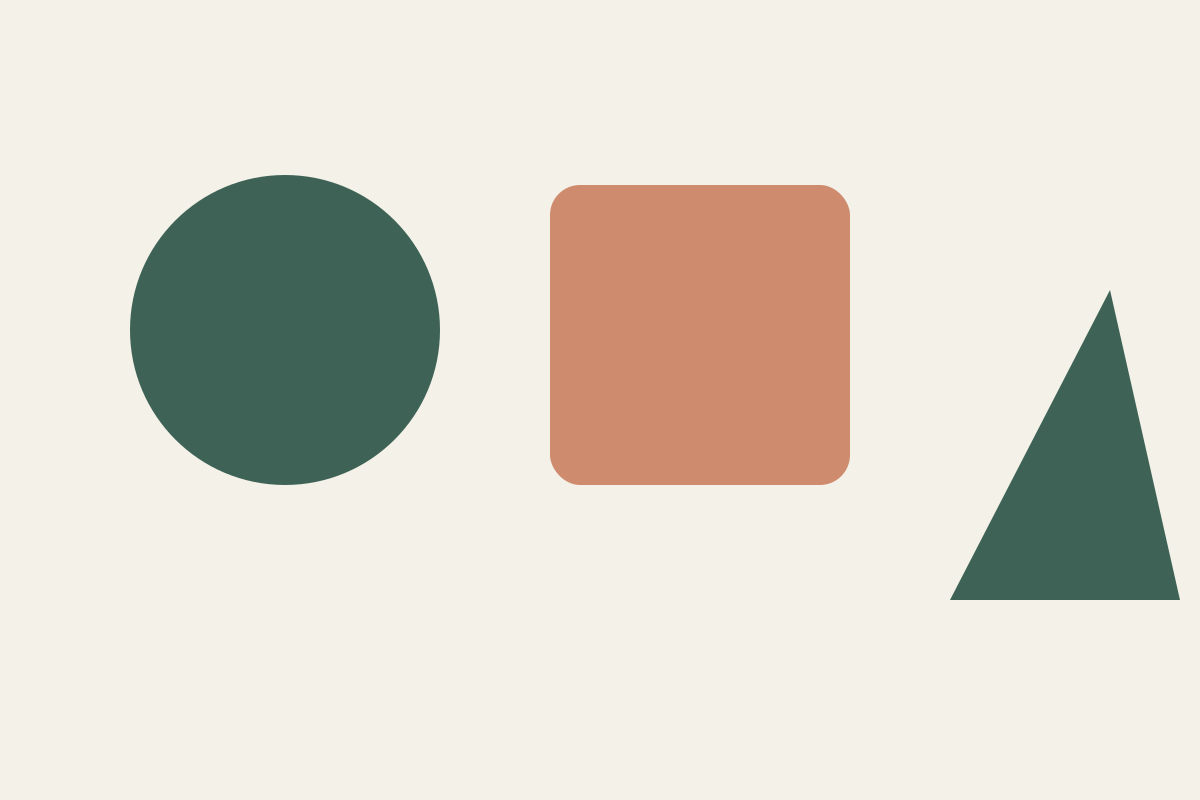
Open Selection practice shapes. Its uniform background and contrasting objects are a useful starting point. For a flat PNG fallback, render it in our browser tool first.
Select the area to keep
Try Magic Wand for a uniform area or a marquee/lasso for manual control. If you selected the background, invert the selection before creating a subject mask. Zoom in and check the edge.
Hide instead of delete
Create a layer mask. Disable any remaining opaque background layer. A checkerboard in an editor is a display convention; it is not itself proof that the export will be transparent.
Inspect the output
Export PNG with transparency preserved. Open the PNG over a contrasting background in another viewer to inspect the edge. JPEG does not preserve an alpha channel.
Files for this workflow
Sources and further reading
PhotoCraft is in early alpha. Keep original files and test a copy before relying on it for important work.
Suggest a correction →